
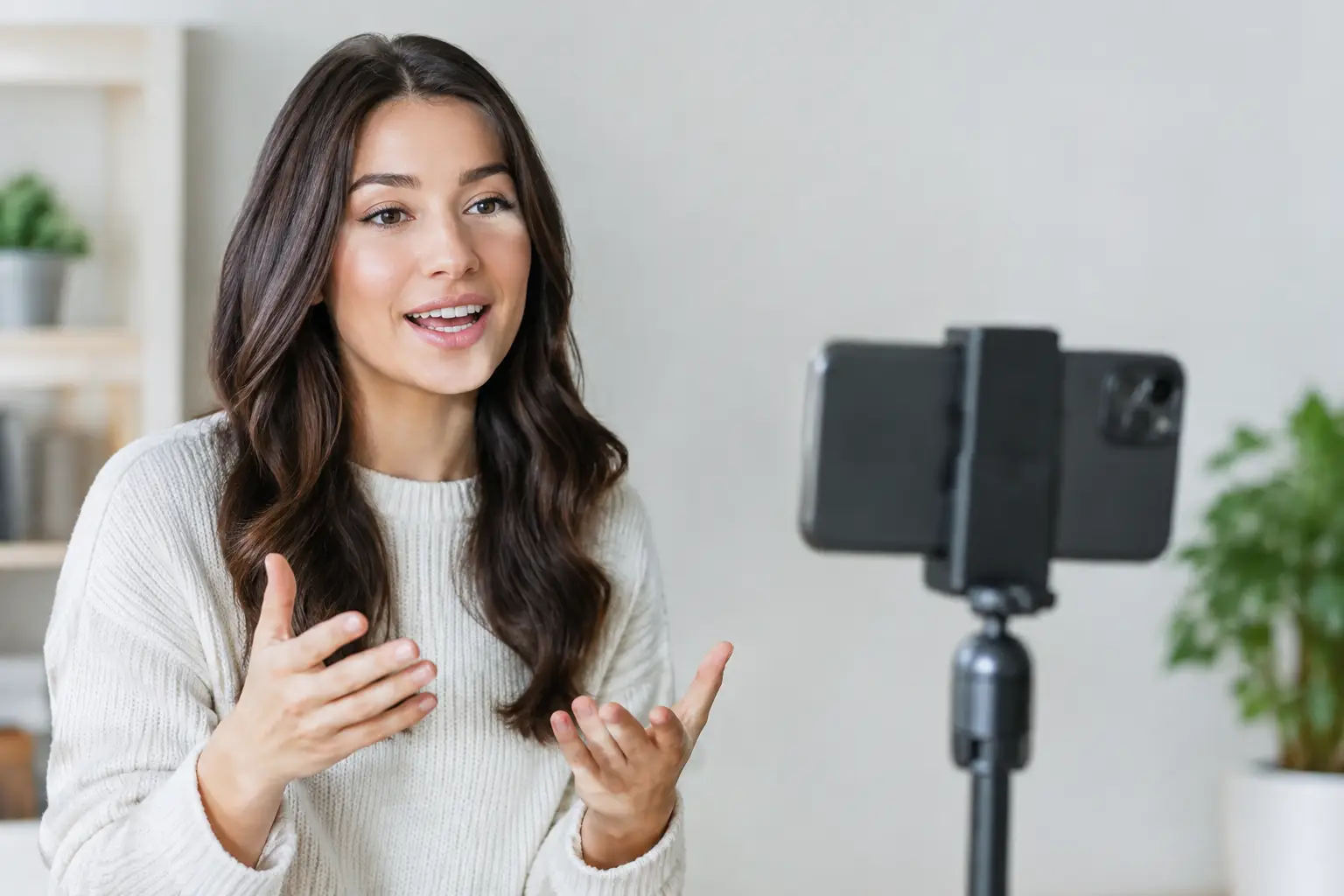
A still character image can become a full episode, but only if the voice, script, facial motion, and final format work together. Knowing how to animate talking portraits is less about making a face move and more about building a repeatable production process that holds attention on TikTok, YouTube, and Facebook.
A talking portrait works especially well for faceless channels, brand mascots, commentary formats, historical characters, educational explainers, and short-form storytelling. The practical goal is simple: start with one strong image, give that character something worth saying, then produce a clean video you can revise and publish without rebuilding the entire project.
Start With a Portrait Built for Speech
The source image determines how believable the finished talking portrait will look. AI can generate lip movement and facial expression, but it cannot fully rescue a portrait with an unclear mouth, heavy shadows across the face, or an extreme head angle.
Use a front-facing or slightly turned image with the character's face clearly visible. The eyes and mouth should be unobstructed, and the face should occupy enough of the frame to remain readable on a phone screen. A chest-up composition is usually the safest choice for social content because it gives the character presence without making every facial movement feel exaggerated.
Avoid images where hands cover the mouth, hair crosses the lips, sunglasses hide the eyes, or the character is turned almost entirely sideways. These images can still be visually interesting, but they are harder to animate convincingly. If your concept depends on a dramatic profile shot, test it before creating a full episode.
You also need the right to use the image. Do not animate a real person, public figure, client, or recognizable character without appropriate permission. For brand content, create original characters or use assets with clear commercial rights. The faster your production system becomes, the more important it is to establish this rule before you scale output.
Write for the Face, Not Just the Feed
A talking portrait does not need a long script. It needs a script that sounds natural when spoken aloud. Many creators make the mistake of pasting a blog paragraph into a voice generator, then wondering why the animation feels stiff. The issue is often the writing, not the portrait.
Write in short spoken sentences. Lead with a claim, a tension point, a surprising fact, or a direct question. Give the character a clear point of view. A generic delivery such as “Here are three tips for improving your marketing” gives the portrait little personality. “Your content calendar is not the problem. Your first three seconds are” creates a stronger opening and a more useful performance.
For short-form video, one idea per scene is easier to watch and easier to revise. A scene can be one sentence, a reaction, a setup, or a payoff. This structure also protects your workflow when a line needs to change. Instead of regenerating a complete two-minute video for one weak sentence, you can update the affected clip.
Read the script aloud before rendering. If you run out of breath, simplify the sentence. If a phrase feels awkward to say, it will often sound even more awkward when delivered through an AI voice. Punctuation matters too. Periods create controlled pauses. Commas slow the delivery. Excessive punctuation can make a voice sound mechanical, so use it to guide rhythm rather than force emotion.
Generate a Voice With Deliberate Pacing
Lip synchronization follows the audio. That makes your voice track one of the most important creative decisions in the project. A clear, conversational voice with controlled pacing gives the animation enough timing information to match mouth shapes and facial movement.
Choose a voice that fits the character and the audience. A financial educator may need a calm, credible delivery. A comedic channel may need sharper pacing and more energy. A local business owner may want a familiar, direct tone that sounds like a real person answering a customer question.
Do not select a voice only because it sounds impressive in a demo. Test it with your actual script. Listen for pronunciation, sentence endings, pauses, and emphasis. A voice that works for a ten-second hook may become tiring across a multi-scene episode.
Keep speed practical. Slightly faster pacing can help short-form retention, but rushing reduces clarity and can make lip movements look more frantic. If a script is too long for the intended runtime, cut words before increasing speed. Cleaner writing produces better voiceovers and stronger animation.
How to Animate Talking Portraits Scene by Scene
The most efficient approach is to create a talking portrait as a series of editable scenes rather than one locked video file. Each scene should pair a character image, a short piece of narration, and the visual direction needed for that moment.
In LipSync Studio, the workflow is built around that production model: provide a character image and episode prompt, then generate the script, AI voiceover, lip-synced scenes, and publishable output in one desktop workflow. Its ElevenLabs voice generation and HeyGen lip synchronization reduce the need to move files between separate writing, voice, animation, and editing tools.
Start by generating the first scene and inspect it before committing to a full episode. Look at the mouth movement during key words, especially words with visible lip shapes such as “make,” “video,” “people,” and “business.” Check whether the eyes feel stable and whether the head motion supports the delivery instead of distracting from it.
Then review the result with the sound on and off. With sound on, you are checking sync, pacing, and emotional fit. With sound off, you are checking whether the face looks natural enough to hold the frame. Viewers often scroll with audio muted, so captions and readable facial motion still matter.
If one scene misses the mark, revise that scene instead of restarting the entire episode. Change the line, adjust the wording, regenerate the voice, or modify the visual instruction for that clip. Targeted revisions keep production moving and prevent a small issue from turning into an hour of rework.
Add Visual Variety Without Losing the Character
A talking portrait should not remain completely static for 60 seconds. At the same time, excessive movement can make an AI character feel unstable. The right amount of variety depends on the platform, topic, and style of your channel.
For a direct-to-camera explainer, let the portrait carry the core message while captions reinforce key phrases. Add scene changes when the topic changes. For storytelling, alternate the talking portrait with supporting images, visual cutaways, on-screen quotes, or simple text cards. The character remains the narrator, but the viewer has more to look at than one face.
Use changes with a purpose. A new scene should signal a new idea, reveal evidence, introduce a twist, or reset attention. Random zooms, effects, and transitions do not create retention by themselves. They can make a useful message feel less credible.
Keep the character consistent across scenes. Use the same portrait or a controlled set of images with the same wardrobe, age, lighting style, and facial features. If the character changes visibly from clip to clip, viewers may focus on the inconsistency instead of the message.
Format the Episode for Where It Will Be Watched
A strong talking portrait can underperform if it is packaged for the wrong platform. Build your episode around vertical viewing when TikTok, YouTube Shorts, or Facebook Reels is the destination. Keep the face centered enough that interface elements and captions do not cover important features.
Captions are not optional for most social video. They support muted viewing, accessibility, and faster comprehension. Keep them high contrast and easy to scan. Highlight only the words that carry the point rather than styling every word on screen.
Your first scene needs to earn the next second. Skip introductions such as “Hey guys” or “Today we are going to talk about.” Let the portrait start with the insight, problem, or premise. If the viewer does not understand why they should stay within the opening line, better animation will not solve the retention problem.
Before publishing, watch the final output on a phone. Check text placement, facial crop, voice volume, caption timing, and the final frame. A good desktop preview is useful, but mobile viewing is where your audience decides whether to keep watching.
The best talking portraits are not built as one-off experiments. Treat each character as a reusable content asset, each script as an episode, and each scene as a revision point. Once that system is in place, one image can keep producing without turning every new video into a new production problem.